

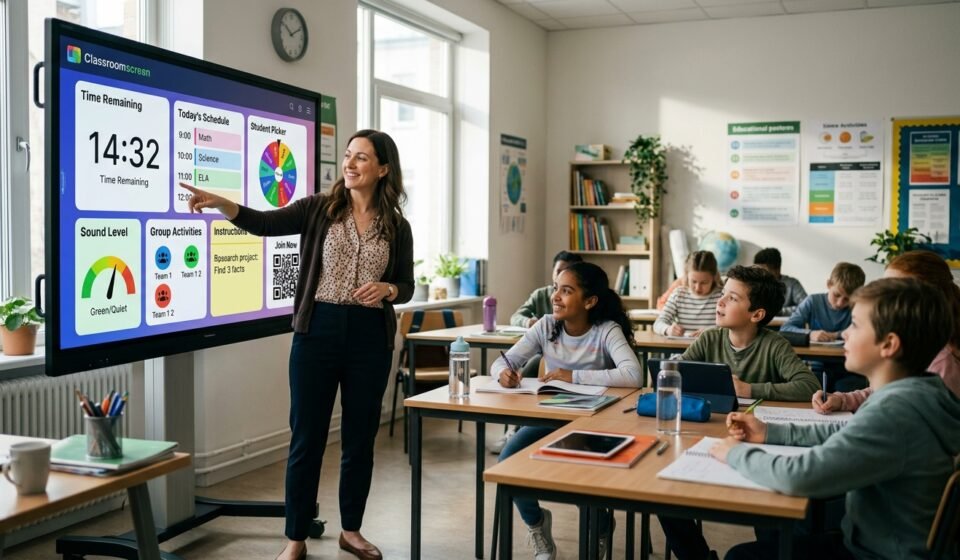

Teachers often need more than a presentation on the classroom display. A lesson may require a countdown timer, clear instructions, a random student selector, group assignments, a noise indicator, a timetable, or a quick way to collect responses. Switching between several websites for those small tasks can interrupt the flow of a lesson.
That is where classroomscreen comes in. It is a web-based digital teaching companion built around customizable widgets that can be arranged on a single screen. The platform describes itself as an online whiteboard for teachers, with tools designed for classroom management, time management, participation, instructions, and interactive activities.
The platform has also continued to evolve in 2026. Its September 2026 product update introduced a new spinner-wheel format for the Randomizer, keyboard-based undo and redo, easier screen reordering and restoration, and an expanded template library.
What Is Classroomscreen?
Classroomscreen is a browser-based classroom display tool that allows teachers to place several instructional and management tools on one digital board. Instead of opening a separate tab for every activity, teachers can combine widgets on a screen and adapt the layout during a lesson.
The service does not require installation. Its current support documentation lists Google Chrome 110+, Firefox 106+, Microsoft Edge 110+, Safari 15+, and iPadOS 15 or newer as fully supported environments. Internet Explorer is not supported.
The basic concept is straightforward: launch a screen, choose a background, add the widgets needed for the lesson, arrange them, and use the resulting display while teaching. Teachers can create a screen from scratch or start with a ready-made template from the platform’s Library.
This makes Classroomscreen especially useful for teachers who want a visual command center rather than a traditional slide presentation.
How Classroomscreen Works
When you open Classroomscreen, you work with a widget-based screen. The current platform provides 26 widgets, covering activities such as timing, participation, classroom organization, media, and visual instructions.
A teacher might create one screen containing instructions and a timer, then move to another screen with a timetable, group maker, and activity resources. Multiple screens can be organized into screen decks, allowing a lesson to have a sequence instead of relying on one static display.
The dashboard acts as the central workspace. According to the current help documentation, it lets users access screen decks, folders, backgrounds, name lists, account settings, templates, and recently deleted screens. Pro users can save their screen decks to their accounts, while Basic users can create and use screens during a session without having those screens saved to the account.
Teachers can also pin frequently used widgets so they remain in the same location across screens in a deck. That can be helpful when a clock, calendar, or other recurring element should stay visually consistent throughout a lesson.
Classroomscreen Widgets You Should Know
The widgets are the core of the platform, and different teachers will use different combinations depending on their routines.
The Timer, Visual Timer, Stopwatch, and Event Countdown are designed for managing time. A timer can show students how long remains for an activity, while a visual timer gives a more intuitive representation of time passing. The Timetable widget can display a daily schedule or lesson sequence.
For student participation, Classroomscreen includes tools such as Randomizer, Group Maker, Poll, Dice, and Scoreboard. The Randomizer can help a teacher select names or items, while Group Maker can divide students into groups. The Poll widget is designed for collecting responses during a lesson without requiring students to use another service or create an additional account for that interaction.
Classroom-management widgets include Sound Level, Traffic Light, Work Symbols, and other visual tools. These can help communicate expectations without requiring the teacher to repeat the same verbal instructions throughout an activity.
There are also content-focused widgets, including Image, PDF, Video, Embed, Hyperlink, and QR Code. These make it possible to bring instructional resources directly into a classroom display. The Embed widget, for example, can be used to place external websites, videos, or tools inside the screen.
New Classroomscreen Updates in September 2026

Classroomscreen is not a static product. The September 2026 update added several changes that are particularly relevant to daily classroom use.
One of the most visible additions is a new Spinner Wheel format for the Randomizer. Instead of simply displaying a selected result, the wheel can show the available names or items and animate as it chooses one. The platform says teachers can also adjust the wheel’s color treatment, including custom themes and multicolored options.
The update also added keyboard shortcuts for undo and redo. On Windows, teachers can use Ctrl + Z to undo and Ctrl + Y to redo, while Mac users can use Command + Z and Command + Shift + Z. These actions can apply to changes such as annotations and widget movements.
Another useful improvement is better screen management. Teachers can reorder screens directly within a deck, and individual deleted screens can be restored through the Recently Deleted area.
The September update also reported that the Classroomscreen Library had passed 200 templates, with 25% coming directly from teachers, and that the Library had been accessed by more than 500,000 teachers. These figures are company-reported rather than independently audited statistics, but they show the scale the service says its template library has reached.
Is Classroomscreen Free?
Yes. Classroomscreen currently offers a Basic plan at no cost. The Basic plan includes all 26 widgets, the annotation bar, remote poll voting, three saved name lists, the ability to save a custom widget-bar layout, and access to the template library.
The main limitation for teachers who want a persistent workspace is saving screens. The current pricing information states that screen saving and sharing are Pro features. Pro is listed at $3 per month when billed annually, or $36 per year in USD. Pro also adds saved screen decks, folders, custom backgrounds, unlimited name lists, custom widget themes, recently deleted recovery, additional backgrounds, and custom background carousels.
Classroomscreen also offers organization accounts for schools and districts. The pricing page currently provides volume-based licensing, with the displayed example showing $525 per year for 25 licenses. Actual organization pricing may vary depending on the number of licenses and applicable regional pricing.
The company currently advertises a 14-day Pro trial. Its pricing documentation also says individual Pro subscriptions renew annually unless canceled.
How to Use Classroomscreen in a Real Lesson
A useful way to approach Classroomscreen is to build screens around routines instead of simply adding as many widgets as possible.
For a morning lesson, a teacher could combine a timetable, clock, written instructions, and a visual activity prompt. During independent work, a timer and work symbols might be enough. For group activities, the Group Maker, Scoreboard, or Randomizer can become the central part of the display.
The platform’s template Library can reduce preparation time for teachers who do not want to create every screen from scratch. Classroomscreen says it offers more than 200 templates as of its September 2026 update, and its earlier getting-started materials describe ready-made screens as customizable resources intended to help teachers begin more quickly.
A practical strategy is to create separate screen decks for recurring teaching situations. For example, a teacher might maintain decks for morning routines, mathematics, group work, independent work, and end-of-day activities. Within each deck, screens can be arranged in the order they are likely to be needed. The platform specifically supports folders and screen-deck organization for different subjects or year groups.
Classroomscreen for Online Teaching
Although its design is strongly associated with physical classrooms, Classroomscreen can also be used in online teaching. The company provides guidance for remote teachers and describes ways to combine polls, group activities, embedded resources, annotations, and visual backgrounds in virtual lessons.
For example, a teacher conducting an online session could use a Poll for a quick check-in, an Embed or Video widget for instructional material, and an annotation tool to explain a concept. This approach can keep important lesson controls and resources visible in one interface rather than spreading them across several browser tabs.
Its usefulness for remote instruction depends heavily on the teacher’s existing video-conferencing setup, internet connection, and browser environment, so it is best viewed as a complementary teaching display rather than a complete virtual learning platform.
Sharing and Collaboration Features
Pro users can save screen decks and share them through links. The current sharing system allows a teacher to choose between view-only access and view-and-duplicate access. Sharing controls also provide options for including or excluding name lists, images, and backgrounds.
That distinction matters in schools. A screen may contain student names, uploaded images, or other classroom-specific information, so teachers should review the content before generating a public link.
Classroomscreen’s current dashboard also supports folders and screen organization, which makes it easier to reuse lesson materials instead of rebuilding the same setup repeatedly.
Privacy and Data Considerations
Privacy is an important consideration whenever classroom software handles student-related information.
Classroomscreen states that account data is stored through Google Cloud Platform and that teacher and student identifiable information is protected using encryption at rest and in transit. The company says it processes customer data in regional locations and handles some limited account information centrally in the United States.
An especially relevant detail is the handling of the Sound Level and Webcam widgets. Classroomscreen states that microphone data from the Sound Level widget and camera data from the Webcam widget are not stored on its servers and are instead processed locally in the browser used to create the display.
Its privacy policy also states that the company does not sell personal information and that users own the content they contribute or create in the application. Schools should still review the platform’s current privacy documentation and their own district policies before entering student information into any online service.
What Makes Classroomscreen Different?
The biggest distinction is its focus. Classroomscreen is designed to bring many small but frequently needed classroom functions into one visual workspace. It is not primarily a grading system, full learning-management system, or student-monitoring platform.
That focused approach explains why the service can be useful even when a school already uses products such as a learning management system, presentation software, or video-conferencing platform. Instead of replacing every other educational technology tool, Classroomscreen can sit alongside them as the teacher’s live classroom display.
Its browser-based design also lowers the setup barrier because teachers do not need to install a dedicated application before using the platform.
Frequently Asked Questions About Classroomscreen
Is Classroomscreen completely free?
The Basic plan is free and includes all 26 widgets, but saved screens and several advanced organization and customization features require Pro.
Does Classroomscreen require an account?
You can launch and use Classroomscreen without logging in. An account is useful when you want features tied to saved settings or subscriptions, while screen saving is part of the Pro experience.
How many widgets does Classroomscreen have?
The current Classroomscreen help center says the platform provides 26 widgets. These include tools for timing, participation, classroom management, media, scheduling, and visual instruction.
Can teachers save screens?
Yes, but saved screen decks are a Pro feature. Pro users can also organize them in folders, while the dashboard provides tools for duplicating, moving, archiving, sharing, and deleting screen decks.
Can students use Classroomscreen?
The platform is primarily designed as a teacher-facing display, although some widgets can support participation and interaction. Polls, drawing, random selection, group creation, and shared screens can all become part of student activities depending on how the teacher structures the lesson.
Is Classroomscreen available in different languages?
Classroomscreen currently offers more than 70 language choices for supported interface elements such as the widget bar, work symbols, and calendar. The company notes that not every part of the application is translated and that the broader application remains primarily available in English.
Final Thoughts
Classroomscreen has grown from a simple collection of classroom widgets into a more structured digital teaching workspace. Its current feature set includes 26 widgets, saved screen decks for Pro users, templates, screen sharing, customizable layouts, and tools for timing, student selection, group work, classroom management, and interactive participation.
The September 2026 update is particularly useful for understanding where the platform is heading. The new Randomizer spinner, improved screen management, undo and redo controls, and expanding teacher-made template library all focus on making everyday classroom preparation and lesson delivery smoother.
For teachers who want one visual workspace to manage instructions, time, activities, and classroom routines, Classroomscreen can be a practical addition to an existing teaching toolkit. The free Basic plan also makes it possible to explore the core experience before deciding whether saved screens and other Pro features are worth adding.



Comments are closed.
[…] Classroomscreen: Features, Pricing, Widgets, and How to Use It in 2026 […]
[…] Classroomscreen: Features, Pricing, Widgets, and How to Use It in 2026 […]